 ProjectQ1
Open ProjectQ1
ProjectQ1
Open ProjectQ1
Before you start
- Use the same Stripe account that is connected to your ProjectQ1 workspace. You need permission to download its financial reports and owner or admin access in ProjectQ1.
- Open Stripe in live mode. These report downloads are disabled in Stripe sandboxes.
- Your ProjectQ1 workspace reporting timezone must be UTC. Stripe exports this report in UTC, regardless of the Dashboard’s display timezone.
- Use a single-currency summary without currency conversion. ProjectQ1 keeps currencies separate; a report that combines converted currencies cannot fill their individual histories.
This import fills complete months before ProjectQ1 began tracking subscriptions. It does not recreate daily changes or product-level history.
Find the months you need.
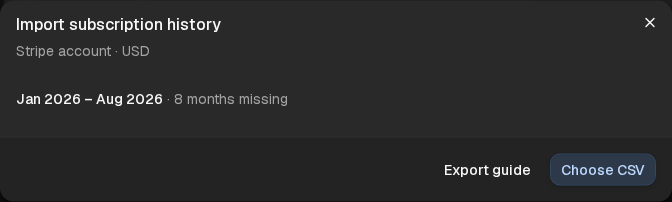
In ProjectQ1, open Integrations. Find the Subscription history card for the account and currency you want to import, then select Upload Stripe CSV. The upload dialog shows the account, currency, and missing month range.
Keep this dialog open while you download your report in another tab.
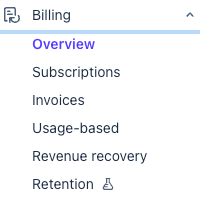
Open Stripe’s Billing overview.
In the Stripe Dashboard, check the account switcher, then expand Billing in the left navigation and choose Overview.
Stay on the Revenue tab. The report downloads are below the charts.
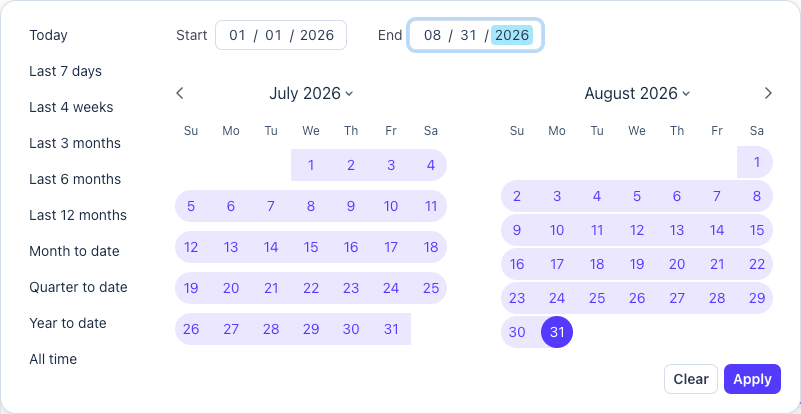
Choose full calendar months.
Open the Date range control above the charts. Enter a Start date on the first day of your earliest missing month and an End date on the last day of your latest missing month. Select Apply.
For example, to cover January through August 2026, choose January 1 through August 31. Export a range wide enough to include all the missing months.
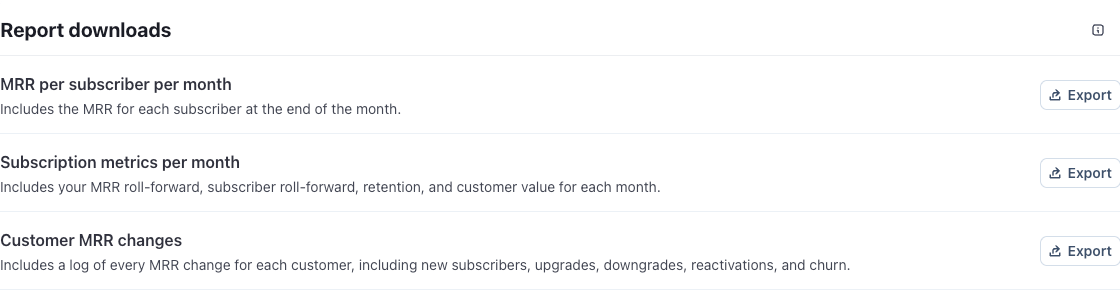
Download the monthly summary.
Scroll to Report downloads. Find Subscription metrics per month and select its Export button. This is the report containing the MRR and subscriber roll-forwards.
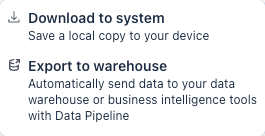
If Stripe shows an export menu, select Download to system.
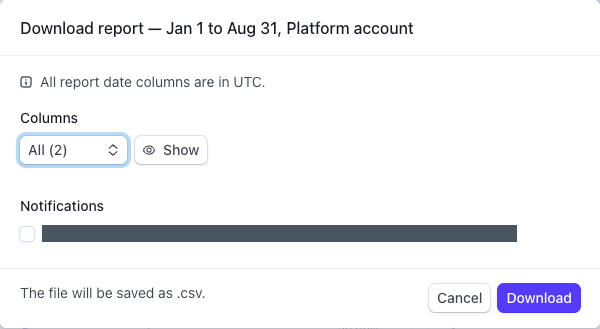
In the download dialog, verify the dates and leave Columns set to All (2). These two selectable fields are Metric name and Unit of measure; the report also includes the month columns. Click Download and wait for the CSV.
Do not transpose, rename columns, or resave the file. Stripe puts months across the top and metrics down the rows. ProjectQ1 recognizes that layout automatically.
Upload the CSV and review.
Return to the ProjectQ1 dialog. Select Choose CSV and choose the downloaded file. A preview opens automatically, showing the number of months you’ll import.
Check the months, currency, MRR, and subscriber counts. Expand View subscription changes if you want to review the other amounts. The preview shows only eligible months. Stripe can include an additional month column in a download; ProjectQ1 excludes months at or after its first tracking month.
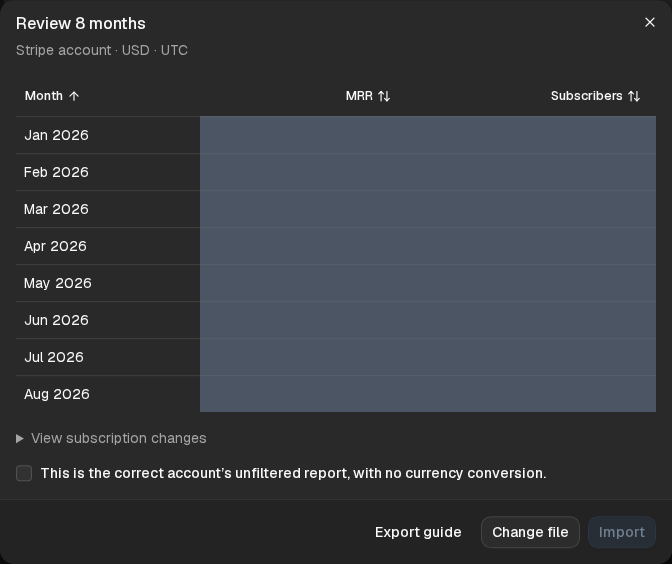
Confirm that the file belongs to the selected account and contains its complete, unfiltered totals for the selected currency, without conversion. Check the confirmation box, then select Import.
One upload imports both your month-end balances and subscription changes. Importing the same months again replaces their previous values; it does not add a second copy.
After the success message, select Done. There is no second upload.
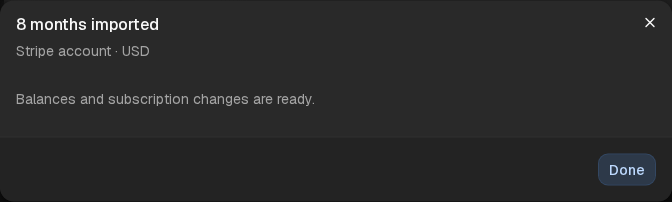
When all missing months are covered, Integrations shows All identified missing months have been imported. The data is available for unfiltered monthly reports covering whole calendar months. ProjectQ1 calculates retention rates from the imported balances and movements; it does not copy Stripe’s displayed percentage rows.
If something doesn’t look right.
Export is disabled in Stripe
Check that you are in the correct live account, not a sandbox, and have permission to download financial reports. Creating test subscriptions does not enable these sandbox export buttons.
ProjectQ1 says the workspace must use UTC
The Stripe report uses UTC month boundaries. If your workspace uses another timezone, this report cannot fill its history accurately. Review the workspace reporting timezone in Settings. Changing it affects reporting day boundaries across the workspace; do not relabel the CSV as your local timezone.
The currency is different or the report includes FX adjustments
Use a report whose monetary units match the selected currency and whose totals have not combined converted currencies. ProjectQ1 rejects nonzero FX adjustments. Zero FX adjustments alone do not prove a report is unconverted; confirm the report covers only the selected currency. There is no currency or timezone selector in the download dialog shown above.
No eligible months were found
Download a range covering the missing months shown in ProjectQ1. Only months before the first tracking month can be imported; a report containing only later months will not fill this gap.
ProjectQ1 asks me to match columns
The file is not recognized as the original monthly Stripe report. Check that you downloaded Subscription metrics per month with All columns, then upload the untouched CSV. A manually prepared summary can still be matched column by column, but customer-level reports cannot substitute for monthly totals.
Some months are still missing
Confirm the export covers every missing month and belongs to the selected account and currency. One original Stripe report supplies both balances and changes. Imports do not fill gaps with zeros.
For Stripe’s metric definitions, see Billing analytics. Stripe’s documentation may call this report “Subscription metrics summary.” The Dashboard label verified for this guide is “Subscription metrics per month.”